MyEkran

Use cases

One screen system. A different job in every space.

Turn menus, campaigns, announcements, and video into scheduled playlists for the right screen, location, and moment.

Quick decision

Is MyEkran the right fit?

If two of these feel familiar, centralized signage can take recurring screen updates off your team’s plate.

  • USB rounds are slowing down routine content changes.
  • The message needs to change by time, day, screen, or location.
  • You want one place to see more than one screen.
  • Your publishing mix includes images, video, and QR destinations.

Setup requires a TV with a current browser or a kiosk device connected to it. MyEkran manages what the screen publishes; it does not control physical power, volume, or brightness.

Start with the job

01

Influence the decision

Put menus, products, and timely offers where customers are ready to choose.

Menu · Featured item · Offer · QR destination

02

Keep people informed

Make schedules, announcements, and live context easy to notice in the right space.

Announcement · Clock · Weather · Ticker

03

Set the atmosphere

Keep brand imagery and motion in tune with the pace of the venue.

Brand visual · Ambience video · Welcome message

04

Run the network

Keep screens, locations, publishing windows, and team access under one operational view.

Targeting · Scheduling · Screen status · Team roles

Where it works

The screen has a different job in every setting.

The same dashboard can run a restaurant menu, hotel guest information, or workplace announcements. Placement, purpose, and publishing timing make each screen useful.

01

Cafés, restaurants, and bars

Give breakfast, lunch, and evening service the right screen story.

Where is the screen?
Entrance, ordering point, behind the bar, or seating area
What does it show?
Daypart menus, featured items, timed offers, QR menu links, and ambience video.
How is it managed?
Build playlists for different service windows, then schedule them by screen or location.
02

Retail stores and showrooms

Carry the product story from the window to the point of sale.

Where is the screen?
Shop window, category area, product display, or checkout queue
What does it show?
New collections, seasonal offers, product video, usage ideas, and QR links to detail pages.
How is it managed?
Prepare the playlist centrally, then send it to one screen or selected locations.
03

Hotels and hospitality

Welcome guests with useful information tailored to each part of the property.

Where is the screen?
Lobby, reception, restaurant, spa entrance, or event space
What does it show?
Welcome messages, breakfast hours, amenities, event schedules, and restaurant notices.
How is it managed?
Run separate lobby and service-area playlists, then add clock, date, or weather frames.
04

Clinics, dental practices, and beauty studios

Turn waiting time into calm, useful, on-brand communication.

Where is the screen?
Reception, waiting area, or consultation point
What does it show?
Service introductions, care information, team profiles, current offers, and appointment QR links.
How is it managed?
Sequence informative images and video, then update the contact strip when needed.
05

Gyms and fitness studios

Keep class schedules, community energy, and membership messages visible.

Where is the screen?
Entrance, reception, training floor, or studio door
What does it show?
Class schedules, coach introductions, upcoming events, membership offers, and motivation video.
How is it managed?
Schedule playlists by time of day and target each studio screen separately.
06

Offices and production sites

Move shared workplace communication out of crowded inboxes.

Where is the screen?
Entrance, break area, cafeteria, or shared team space
What does it show?
Company notices, safety reminders, team wins, event schedules, and training video.
How is it managed?
Create location-specific announcement playlists and share publishing duties through team roles.
07

Property agencies and automotive showrooms

Use strong visuals to earn attention, then move interest toward the details.

Where is the screen?
Window, welcome area, advisor desk, or beside the vehicle
What does it show?
Property or vehicle imagery, key features, promotional video, and contact QR codes.
How is it managed?
Sequence assets in playlists and assign different stories to showroom or window screens.
08

Education and event venues

Put schedules, achievements, and current announcements where people will see them.

Where is the screen?
Entrance, corridor, foyer, registration point, or stage area
What does it show?
Class or event schedules, speakers, sponsors, success stories, and wayfinding visuals.
How is it managed?
Build day-and-time schedules, then target different content by room or location.

Available today

What can you run in MyEkran?

Handle the core publishing workflow in one system, from media uploads to screen status. These are capabilities available in MyEkran today; sources requiring an outside integration are scoped separately.

Upload

Media library

Organise images and, on eligible plans, video in one library.

Sequence

Playlists

Set the content order, image duration, and playlist loop behaviour.

Target

Screens and locations

Send one playlist to selected location screens or a single chosen screen.

Schedule

Publishing schedule

Plan content ahead by date, weekday, and time window.

Brand

Screen frame

Manage logo, QR, clock, weather, product name, and ticker areas.

Monitor

Screen status

See connected or offline screens, last-seen details, and player connection status.

Share

Team roles

Divide location and publishing work through controlled permissions.

Pair

Short TV code

Enter the browser code in the dashboard to attach the screen to its location.
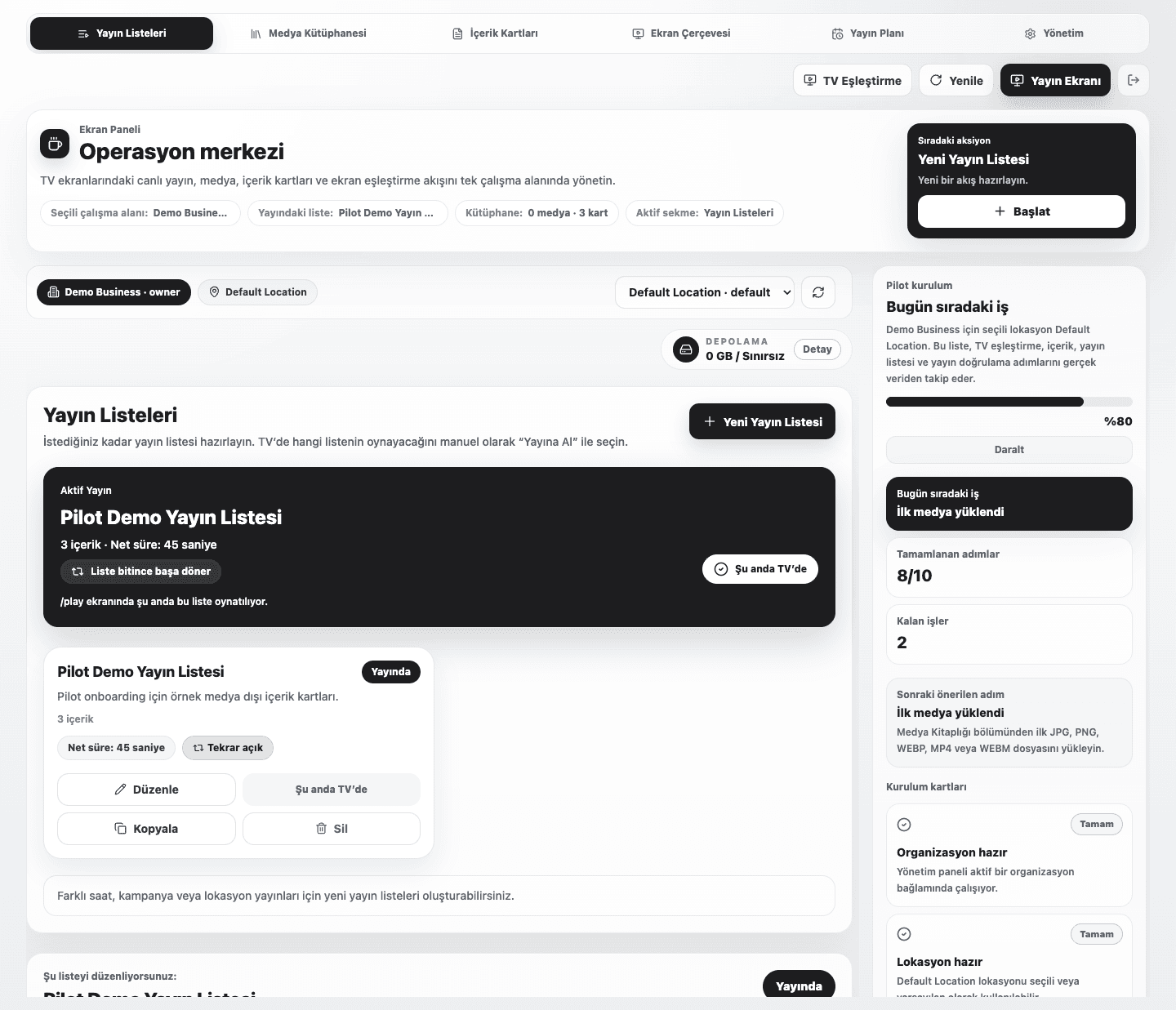
MyEkran dashboard showing playlists, screens, and connection status

Real product view: playlists, content management, and screen status in one dashboard.

A day on screen

Publishing follows the rhythm of the venue.

Scheduled playlists take over on the chosen days and times. Teams can still select a publication manually when plans change.

  1. Morning welcomeBreakfast menus, a welcome message, or the day’s schedule goes live.
  2. Peak serviceThe lunch menu, a featured product, or service information takes over.
  3. Campaign windowA time-bound offer or event announcement appears automatically.
  4. Evening moodThe visual tone and video playlist shift to match the venue after dark.

Clear boundaries

The right expectations make setup easier.

MyEkran is a publishing management system. It organises, targets, and plays the content you upload. It does not pull data from external business tools automatically or change a display’s physical settings.

Common questions

How is a TV paired?

Open myekran.com/tv in the TV browser, enter the short code in the dashboard, name the screen, and assign its location.

Can each screen run different content?

Yes. Assign playlists or schedules separately using screen and location targets.

What happens during a short internet outage?

The player can keep showing the last verified publication for a limited period. Cached playback stops when the server revokes access.

Can images and video share one playlist?

Yes. Playlists can sequence images and video allowed by the selected plan, while image durations remain configurable.

Can content change at set times?

Yes. Define date, weekday, and time windows to bring different playlists live automatically.

Next step

Let’s shape the right publishing setup for your screens.

Tell us how many screens you run, where they sit, and what they need to show. We’ll map the right setup with you.

Plan your setup
MyEkran Use Cases | Digital Signage for Real Workplaces